Are your WhatsApp messages not being delivered? Are you stuck with one grey tick, a clock icon, or messages that simply won't send?
Don't worry. In most cases, you don't need to delete WhatsApp or change your phone.
WhatsApp messages can fail to send or deliver for several reasons, including internet problems, app issues, phone settings, recipient connectivity, account restrictions, or WhatsApp Business messaging limitations.
This guide explains why WhatsApp messages are not being delivered and what you can do to fix the problem.
If you use WhatsApp for personal conversations, start with the first few fixes. If you're using WhatsApp Business to communicate with customers, skip to the WhatsApp Business messages not delivered section for additional troubleshooting.
Quick Answer: Why Are My WhatsApp Messages Not Delivered?
The most common reasons WhatsApp messages aren't delivered are:
Your internet connection is unstable.
WhatsApp is temporarily experiencing a service problem.
The recipient's phone is offline.
The recipient doesn't currently have an internet connection.
Your WhatsApp app is outdated.
Your phone is restricting WhatsApp's background activity.
WhatsApp doesn't have permission to use mobile data.
The problem is specific to one contact.
Your account has a restriction.
You're experiencing a WhatsApp Business or API delivery problem.
The first thing you should do is look at the symbol next to your message. It tells you where the delivery process may have stopped.
What Do the WhatsApp Ticks Mean?
WhatsApp uses different symbols to show the status of a message.
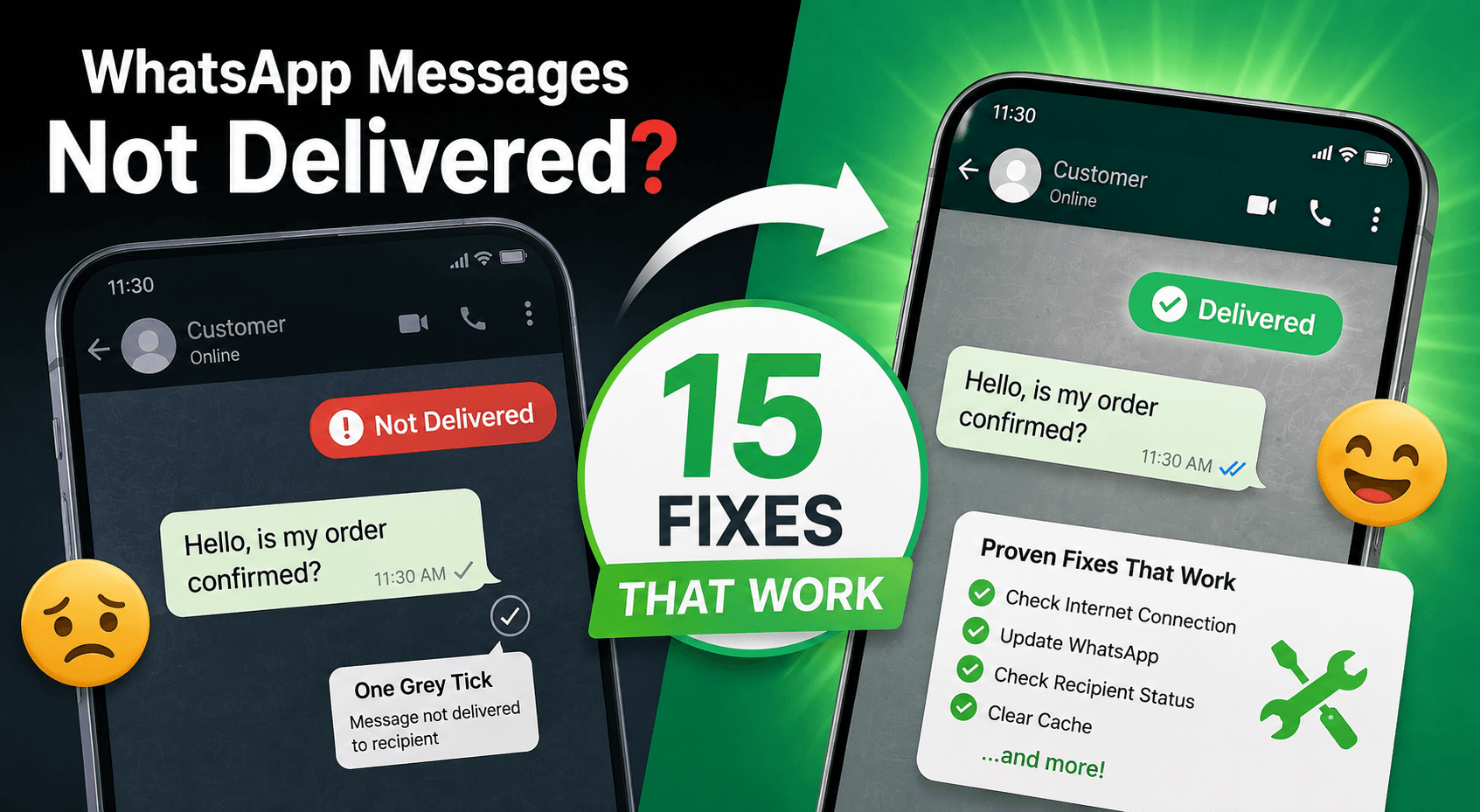
A clock icon generally means the message hasn't been sent from your device yet.
A single grey tick means the message has been sent but hasn't been delivered to the recipient's device.
Two grey ticks mean the message has been delivered.
Two blue ticks generally mean the message has been read, assuming read receipts are enabled.
This distinction is important.
If you're seeing a clock icon, start by checking your own connection.
If you're seeing one grey tick, the message has already left your device, so the problem may be on the recipient's side—or there may be another reason the message hasn't been delivered.
1. Check Your Internet Connection
Start with the simplest possibility.
WhatsApp needs an active internet connection to send messages. A connection can also appear to work while still being unstable enough to interfere with WhatsApp.
Try switching between Wi-Fi and mobile data.
You can also:
Turn Airplane Mode on for about 10 seconds.
Turn it off again.
Open a website to confirm that your internet is working.
Restart your Wi-Fi router if you're using Wi-Fi.
Try sending a message again.
If WhatsApp immediately starts working after changing networks, your connection was probably the problem.
2. Check Whether WhatsApp Is Having an Outage
Sometimes WhatsApp itself is the problem.
If WhatsApp is experiencing a widespread service disruption, messages may stop sending or delivery may become delayed.
If everything was working normally and suddenly messages stopped going through, check whether other users are reporting a similar problem.
If there is a widespread outage, repeatedly reinstalling WhatsApp won't fix it.
Wait for the service to recover and try again.
3. Check Whether the Problem Happens With Everyone
This is one of the fastest ways to find the cause.
Send a short message to another WhatsApp contact.
If that message is delivered normally, the problem may be specific to the original recipient or conversation.
If messages aren't being delivered to anyone, the problem is more likely to be related to your internet connection, phone, WhatsApp app, or account.
This simple test can prevent you from changing settings unnecessarily.
4. The Recipient's Phone May Be Offline
If your message has one grey tick, the recipient's phone may simply not be connected.
Their phone could be:
Switched off
Out of battery
Without mobile data
Disconnected from Wi-Fi
Temporarily unable to connect to WhatsApp
In this situation, there may be nothing wrong with your phone.
Once the recipient reconnects, the message may be delivered automatically.
5. You May Have Been Blocked
This is one of the first things people think about when they see one grey tick.
But don't jump to that conclusion.
One grey tick does not automatically mean you've been blocked.
WhatsApp intentionally doesn't provide a definitive notification when someone blocks you.
If messages consistently remain at one tick and you also notice other changes—such as being unable to see certain profile information or WhatsApp calls not connecting—blocking is one possible explanation.
However, connectivity problems and privacy settings can create similar symptoms.
So treat blocking as a possibility, not a certainty.
6. Update WhatsApp
An outdated version of WhatsApp can sometimes cause connection, compatibility, or synchronization problems.
Open the Google Play Store on Android or the App Store on iPhone and check whether WhatsApp has an update available.
After updating:
Close WhatsApp.
Restart your phone.
Open WhatsApp again.
Try sending a new message.
Keeping WhatsApp updated is also a good general security and reliability practice.
7. Restart WhatsApp
Sometimes the solution really is that simple.
Close WhatsApp completely and reopen it.
If the problem continues, restart your phone.
Restarting can clear temporary app processes and connection problems that prevent messages from being sent correctly.
8. Check Your Phone's Date and Time
Incorrect date and time settings can interfere with applications that depend on secure connections and synchronization.
Set your phone's date and time to automatic.
On Android, look under your phone's Date & Time settings and enable automatic date and time.
On iPhone, go to Settings → General → Date & Time and enable Set Automatically.
Then reopen WhatsApp and try sending the message again.
9. Clear WhatsApp Cache on Android
If you're using Android, clearing WhatsApp's cache can sometimes help with temporary app problems.
Go to your phone's:
Settings → Apps → WhatsApp → Storage → Clear Cache
Be careful not to select Clear Data unless you understand the consequences and have a current backup.
After clearing the cache, open WhatsApp and test the message again.
iPhone doesn't provide the same general cache-clearing option. If you're having persistent problems on iOS, updating or reinstalling WhatsApp may be necessary.
Before reinstalling, make sure your chats are backed up.
10. Check WhatsApp Linked Devices
If you use WhatsApp Web or WhatsApp on multiple devices, check your linked sessions.
Open WhatsApp and go to:
Settings → Linked Devices
Review the devices connected to your account.
If you see an old device that you no longer use, log it out.
If you see something you don't recognize, remove it and secure your account.
If you're specifically running into a WhatsApp device-limit problem, our detailed guide can help:
WhatsApp Device Limit Reached? Here's How to Fix Multi-Device Errors
11. Check Battery and Background Restrictions
Some Android phones aggressively restrict background activity to save battery.
This can cause WhatsApp to behave differently when the app isn't open.
If messages or notifications only appear after you open WhatsApp, check your phone's:
Battery optimization
Background activity
Background data
Battery saver
Data usage restrictions
Make sure WhatsApp is allowed to operate normally in the background.
This is especially important if WhatsApp works normally when you're actively using it but stops updating when the app is closed.
12. Check Mobile Data Permissions
Does WhatsApp work when you're connected to Wi-Fi but stop working when you use mobile data?
Your phone may be restricting WhatsApp's cellular-data access.
Open your phone's mobile-data settings and make sure WhatsApp is allowed to use mobile data.
Then turn mobile data off and back on and try again.
13. Your WhatsApp Account May Have a Restriction
If you suddenly can't send messages, particularly after unusual or high-volume messaging activity, your account may need attention.
This is particularly important for businesses.
Avoid unofficial WhatsApp applications, modified WhatsApp clients, spam tools, and services that promise unlimited bulk messaging.
If your WhatsApp Business account has been suspended or banned, don't keep attempting the same actions repeatedly.
Instead, identify the reason for the restriction and follow the appropriate account recovery process.
If that's the problem you're dealing with, we've covered it in detail here:
WhatsApp Business Account Banned? Here's How to Fix It Step by Step
14. WhatsApp Business Messages May Have Different Delivery Problems
If you're using WhatsApp to communicate with customers, troubleshooting becomes slightly different.
A personal WhatsApp conversation and a business messaging system aren't necessarily going to fail for the same reasons.
WhatsApp Business delivery problems can involve:
Message templates
Customer opt-ins
Account quality
Customer blocks
Messaging restrictions
API configuration
Delivery events
High messaging volumes
Provider issues
For example, if you're sending template messages through the WhatsApp Business Platform, the template needs to meet the applicable requirements and approval process.
If your messages aren't being delivered even though the template is approved, you should investigate delivery status, account quality, recipient eligibility, and your API setup rather than repeatedly creating new templates.
If you're regularly communicating with customers through WhatsApp, Chati can help centralize conversations and automate customer communication instead of relying on manual messaging from a single phone.
See how Chati can help you manage WhatsApp customer conversations and automation →
15. High-Volume Messaging Can Cause Business Delivery Problems
This is where many businesses make a mistake.
If you're sending a few personal messages, troubleshooting usually starts with your phone.
If you're sending hundreds or thousands of business messages, the problem can be much bigger.
Large-scale WhatsApp messaging requires businesses to pay attention to:
Message delivery
Failed messages
Messaging quality
Customer engagement
API performance
Webhooks
Campaign spikes
Automation
Account limits and policies
For example, a campaign that suddenly sends a very large number of messages can expose infrastructure or configuration problems that wouldn't appear during normal usage.
If your business is reaching the point where multiple employees need to manage WhatsApp conversations, automation can also become much more valuable than manually switching between phones and WhatsApp Web sessions.
That's one of the problems Chati is designed to solve.
Explore Chati for WhatsApp automation, customer conversations, and team-based messaging →
WhatsApp Messages Not Sending vs Not Delivered
These two problems sound similar but aren't exactly the same.
WhatsApp Messages Not Sending
If you see a clock icon or the message fails before being sent, start by checking:
Internet connection
Mobile data
Wi-Fi
WhatsApp version
Phone permissions
Background restrictions
The problem is likely happening on your device or connection.
WhatsApp Messages Not Delivered
If you see one grey tick, the message has been sent but hasn't reached the recipient's device yet.
The recipient may be offline, disconnected, or there may be another account or delivery-related reason.
Understanding this difference makes troubleshooting much faster.
What If WhatsApp Messages Aren't Delivered to One Person?
If WhatsApp works normally with everyone else but messages to one person remain at one tick, don't immediately reinstall WhatsApp.
First ask:
Is the recipient's phone online?
Can you reach them through another channel?
Are your other WhatsApp conversations working?
Has the message remained at one tick for an unusually long time?
Have you noticed any other changes with that contact?
If everything else works normally, the issue may be specific to that recipient rather than your WhatsApp account.
What If WhatsApp Business Messages Aren't Being Delivered?
For businesses, use a different troubleshooting approach.
Start by checking your message status.
Then look at the following:
Check Your Template
If you're sending template messages, confirm that the template is approved and configured correctly.
Check Customer Opt-In
Make sure customers have properly opted in to receive the type of messages you're sending.
Check Message Quality
Look for increasing blocks, complaints, or declining engagement.
Check Your Volume
If delivery problems started immediately after a large campaign, investigate your messaging volume and infrastructure.
Check Your API
If you're using the WhatsApp Business Platform through a provider, check your API logs, webhooks, delivery events, and provider dashboard.
Check Your Automation
If multiple systems are sending messages at the same time, investigate whether duplicate workflows, failed webhooks, or automation errors are contributing to the problem.
For businesses that have outgrown basic WhatsApp management, using a centralized platform can make it much easier to see what's happening across conversations and campaigns.
See how Chati helps businesses manage WhatsApp conversations and automate customer communication How to Prevent WhatsApp Delivery Problems
Fixing the problem is good.
Preventing it from happening again is better.
Keep WhatsApp updated and maintain a reliable internet connection.
If you're using WhatsApp for business, avoid sending irrelevant or unwanted bulk messages. Poor customer engagement can create bigger messaging problems over time.
Don't use unofficial WhatsApp applications or modified clients.
Keep your business messaging compliant with WhatsApp's applicable policies.
And if you're operating at scale, don't rely on a collection of phones and browser tabs as your entire customer communication system.
A centralized WhatsApp platform can help your team organize conversations, automate repetitive interactions, and keep customer communication manageable as volume grows.
Learn more about Chati's WhatsApp automation and customer communication tools →
When Should You Contact WhatsApp Support?
Contact WhatsApp support if:
You cannot send messages to anyone despite having a working internet connection.
Your account appears restricted.
Your WhatsApp account has been suspended or banned.
You believe your account has been compromised.
The problem continues after updating and restarting the app.
The problem occurs across multiple devices.
Before contacting support, collect useful information such as your phone model, operating system, WhatsApp version, screenshots of the error, and when the problem started.
Also note whether the problem affects one contact or every conversation.
Frequently Asked Questions
Why are my WhatsApp messages stuck on one tick?
One grey tick generally means your message has been sent but hasn't been delivered to the recipient's device yet. The recipient may be offline, without an internet connection, or there may be another reason the message hasn't reached their device.
One tick alone does not prove that you've been blocked.
Why is my WhatsApp message not sending?
If your message is stuck with a clock icon or fails to send, check your internet connection first. Then restart WhatsApp, update the app, and check whether your phone is restricting WhatsApp's network or background activity.
Does one tick on WhatsApp mean I'm blocked?
No. One grey tick only tells you that the message hasn't been delivered.
Being blocked is one possible explanation, but it cannot be confirmed from one tick alone.
Why are my WhatsApp Business messages not delivered?
Business messages can fail or be delayed because of connectivity problems, recipient issues, template problems, messaging restrictions, account quality, API configuration, customer blocks, or high-volume messaging.
Businesses should check delivery status and their WhatsApp Business setup before assuming the problem is with the recipient's phone.
Why does WhatsApp work on Wi-Fi but not mobile data?
Your phone may be restricting WhatsApp's cellular-data access.
Check your mobile-data permissions and make sure WhatsApp is allowed to use mobile data.
Why do WhatsApp messages arrive only when I open the app?
Your phone may be restricting WhatsApp's background activity.
Check battery optimization, background data, battery saver, and notification settings.
Should I reinstall WhatsApp if messages aren't delivered?
Not as your first step.
Check your connection, WhatsApp status, app version, phone settings, and whether the problem affects one contact or everyone.
If you reinstall WhatsApp, make sure your chats are backed up first.
How do I fix WhatsApp messages not delivered on Android?
Start by checking your internet connection, updating WhatsApp, restarting your phone, checking mobile-data permissions, and clearing the WhatsApp cache.
If the problem continues, check battery optimization and background-data restrictions.
How do I fix WhatsApp messages not delivered on iPhone?
Check your internet connection, update WhatsApp, restart your iPhone, check cellular-data access for WhatsApp, and make sure relevant notification and background settings are enabled.
Why are my WhatsApp Business API messages delayed?
Possible causes include high message volumes, infrastructure issues, API configuration, message quality, campaign spikes, provider problems, or delivery restrictions.
If delays happen primarily during campaigns, investigate your delivery logs and messaging infrastructure.
Final Takeaway
When WhatsApp messages aren't delivered, don't immediately assume you've been blocked or banned.
Start with the basics:
Check the icon → check your internet → test another contact → update WhatsApp → check phone restrictions → check your account → investigate WhatsApp Business/API issues if you're a business.
For personal WhatsApp users, delivery problems are often caused by connectivity, the recipient's device, app problems, or phone settings.
For businesses, the problem can become more complicated as messaging volume increases.
If your team is managing customer conversations, sending campaigns, using automation, or handling a growing number of WhatsApp leads, you may eventually need more than the standard WhatsApp app.
That's where a centralized WhatsApp customer communication platform can help.
Related WhatsApp Guides
If you're troubleshooting another WhatsApp problem, these guides may help:
WhatsApp QR Code Not Working? 10 Fixes That Work
WhatsApp Device Limit Reached? How to Fix Multi-Device Errors
WhatsApp Business Account Banned? Here's How to Fix It Step by Step
WhatsApp Business API Template Approval: What to Know in 2026