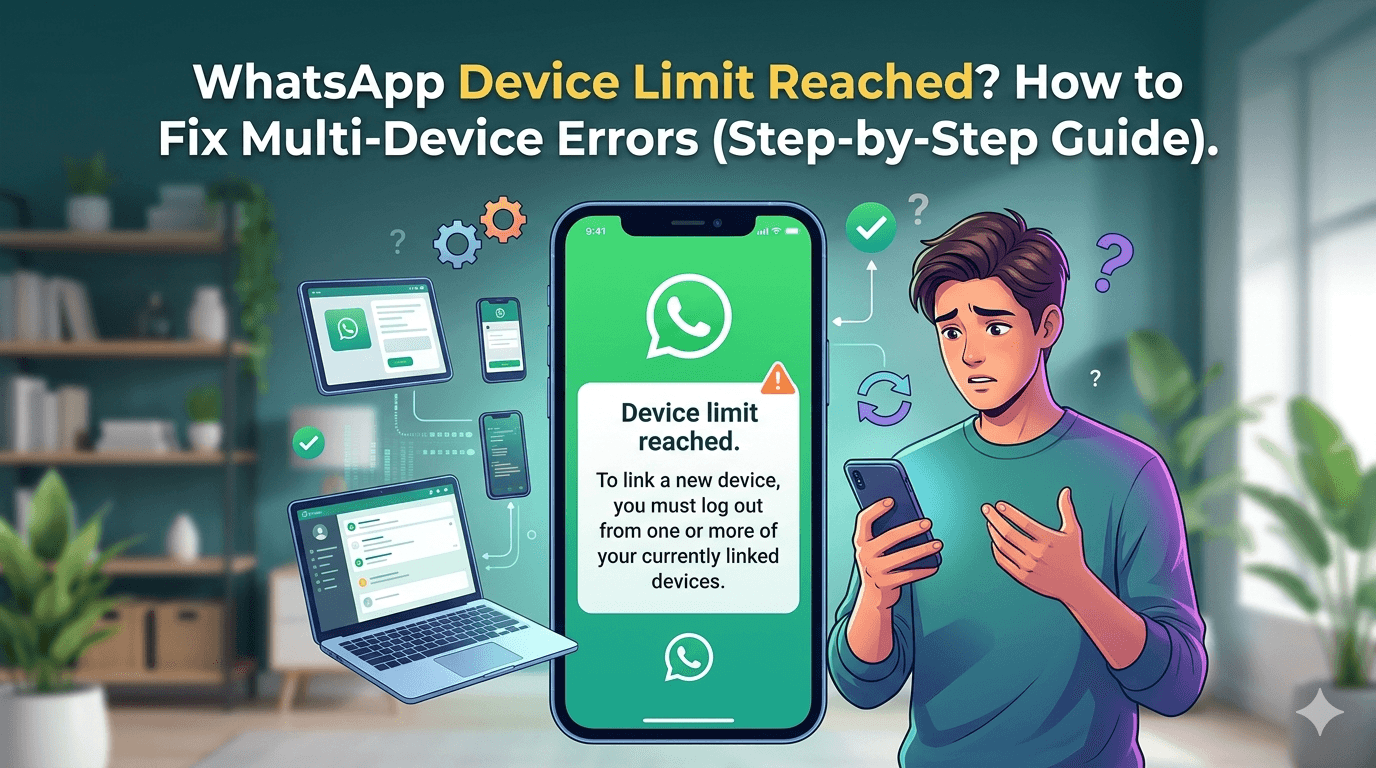
If you’ve ever tried logging into WhatsApp on a new device and seen the message “Device limit reached”, you’re not alone. This issue is becoming more common as users rely on multiple devices for work, business, and daily communication.
In this guide, you’ll learn why this error happens, how to fix it quickly, and how to avoid it in the future—whether you’re an individual user or managing WhatsApp for business.
What Does “Device Limit Reached” Mean on WhatsApp?
WhatsApp allows you to use your account on multiple devices through its multi-device feature. However, there is a limit to how many devices can be connected at once.
Current Device Limits:
1 primary phone
Up to 4 linked devices (like laptops, tablets, or browsers)
Once you exceed this limit, WhatsApp blocks new connections and shows the error.
Why You’re Seeing This Error
Here are the most common reasons behind the issue:
1. Too Many Linked Devices
If you’ve connected multiple browsers, desktops, or tablets over time, you may have reached the maximum limit.
2. Old or Forgotten Sessions
Devices you no longer use may still be connected in the background.
3. Frequent Login Attempts
Repeatedly linking devices in a short time can trigger temporary restrictions.
4. Business Usage Across Teams
If multiple team members are trying to access the same account, the limit gets hit quickly—especially without a proper system in place.
How to Fix “WhatsApp Device Limit Reached” Error
Follow these simple steps to resolve the issue:
Step 1: Check All Linked Devices
Open WhatsApp on your phone
Tap Settings (or the 3-dot menu on Android)
Select Linked Devices
You’ll see a list of all active sessions.
Step 2: Remove Unused Devices
Tap on any device you don’t recognize or no longer use
Select Log Out
Freeing up even one slot allows you to connect a new device instantly.
Step 3: Reconnect Your New Device
Go to WhatsApp Web or Desktop
Scan the QR code again using your phone
You should now be able to log in without errors.
Step 4: Update WhatsApp
Sometimes, outdated versions can cause syncing or device issues.
Update WhatsApp from the App Store or Play Store
Restart your device before trying again
Step 5: Wait If Temporarily Blocked
If you tried linking too many times:
Wait for a few hours
Avoid repeated login attempts
WhatsApp usually lifts temporary restrictions automatically.
How Businesses Can Avoid This Problem
If you're using WhatsApp for customer communication, hitting device limits can slow down your team.
Instead of sharing one account across multiple people, consider a more scalable setup.
Use a Centralized Inbox System
A multi-channel live chat inbox allows teams to:
Access WhatsApp from one shared dashboard
Avoid device limits entirely
Assign chats to different team members
Automate Customer Conversations
Using a WhatsApp customer support automation tool, businesses can:
Handle FAQs instantly
Reduce manual workload
Maintain consistent response times
Upgrade to WhatsApp API Solutions
For growing businesses, WhatsApp automation for SaaS platforms provides:
Multi-user access without device restrictions
CRM integrations
Advanced automation and analytics
Pro Tips to Prevent Future Errors
Regularly review and log out of unused devices
Avoid logging in from too many browsers
Don’t share login access informally across teams
Use official tools for business scaling instead of workarounds
When You Should Be Concerned
If you notice:
Unknown devices linked to your account
Frequent disconnections
Login attempts you didn’t initiate
Immediately log out of all devices and secure your account.
Final Thoughts
The “Device Limit Reached” error is easy to fix once you understand what’s causing it. For personal use, a quick clean-up of linked devices usually solves the problem.
But for businesses, this issue is often a sign that it’s time to move beyond basic WhatsApp usage and adopt tools designed for team collaboration and automation.