Seeing one gray tick on WhatsApp and wondering why your message hasn't been delivered?
You're not necessarily blocked, and your WhatsApp may not be broken.
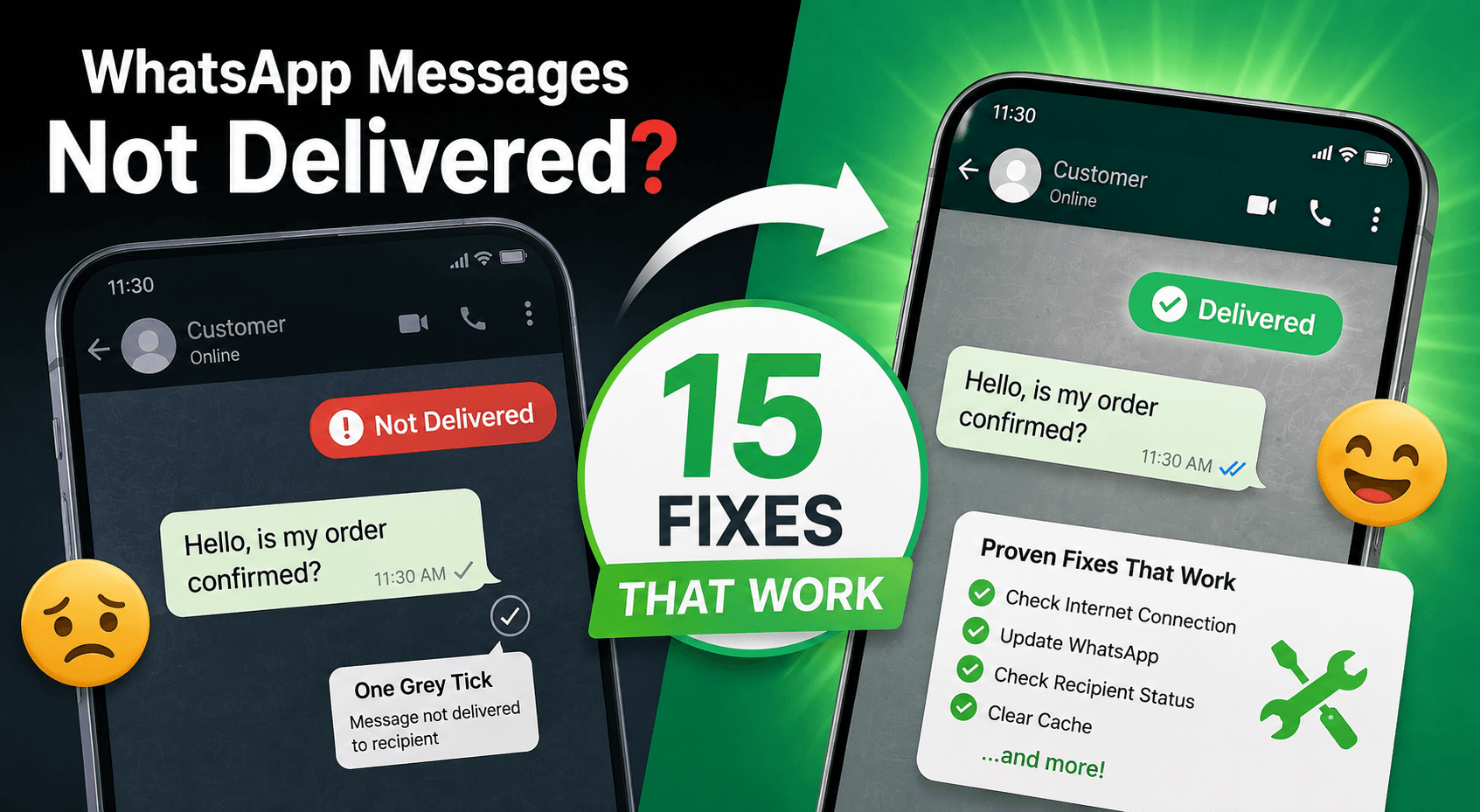
A single gray tick usually means the message has been sent from your device but hasn't reached the recipient's device yet. The reason could be their phone being offline, an internet problem, a temporary WhatsApp issue, or a problem specific to that contact.
If you're seeing a clock icon instead of a gray tick, that's a different problem: the message hasn't left your device yet.
In this guide, we'll explain what the WhatsApp ticks mean and 12 things you can try when a message isn't being delivered.
Quick Answer: Why Is My WhatsApp Message Not Delivered?
If your WhatsApp message is stuck on one gray tick, try these fixes:
Check whether the recipient is online.
Test another WhatsApp contact.
Check your own internet connection.
Restart WhatsApp.
Restart your phone.
Turn Airplane Mode on and off.
Update WhatsApp.
Check whether WhatsApp is experiencing an outage.
Check whether the contact has blocked you.
Verify the recipient's phone number.
Check your phone's date, time, and data settings.
For WhatsApp Business, check delivery errors and account restrictions.
But first, it's important to understand what that tick actually means.
What Does One Gray Tick Mean on WhatsApp?
WhatsApp uses different icons to show the status of your message.
WhatsApp iconMeaning🕐 ClockThe message hasn't been sent from your phone yet✓ One gray tickThe message has been sent but hasn't been delivered to the recipient✓✓ Two gray ticksThe message has been delivered✓✓ Two blue ticksThe message has been read, if read receipts are enabled
So if you're seeing one gray tick, your message has already left your device.
That means repeatedly checking your Wi-Fi or reinstalling WhatsApp may not solve the problem.
The next step is figuring out whether the issue is with the recipient, your account, or WhatsApp itself.
1. Check Whether the Recipient Is Online
The simplest explanation is often that the recipient's phone isn't currently connected.
Their phone could be:
Turned off
In Airplane Mode
Without mobile data
Outside Wi-Fi coverage
Experiencing a temporary network problem
Temporarily disconnected from WhatsApp
If that's the case, there isn't a setting on your phone that can force the message to arrive.
Wait for the recipient to reconnect.
Once their device becomes reachable, the message may move from one gray tick to two.
2. Send a Message to Another Contact
This is one of the best ways to diagnose the problem.
Send a test message to another person on WhatsApp.
If the second message gets two ticks
Your WhatsApp connection is probably working normally.
The issue is likely specific to the first contact.
If every message stays on one tick
The problem could be broader.
Check your internet connection, WhatsApp status, app version, and account settings.
This simple test can save you from changing settings that aren't actually causing the problem.
3. Check Your Internet Connection
If you're seeing a clock icon rather than one gray tick, your own connection should be the first thing you check.
Open a website in your browser.
If the website doesn't load, your internet connection may be the problem.
Try:
Switching from Wi-Fi to mobile data.
Switching from mobile data to Wi-Fi.
Restarting your router.
Moving to an area with better mobile coverage.
Turning Airplane Mode on and off.
If your message already has one gray tick, however, your phone has successfully sent it. In that situation, focus on the recipient or WhatsApp service rather than repeatedly resetting your connection.
4. Restart WhatsApp
A temporary WhatsApp app glitch can sometimes cause messages or status updates to behave strangely.
Close WhatsApp completely and open it again.
Android
Open the recent-apps screen and remove WhatsApp.
Then launch WhatsApp again.
iPhone
Open the app switcher and swipe WhatsApp away.
Then reopen the app.
Check the affected conversation again.
5. Restart Your Phone
If WhatsApp is behaving strangely across multiple conversations, restart your phone.
A restart can refresh:
Mobile network connections
Wi-Fi connections
Background processes
App sessions
Temporary system errors
After restarting, open WhatsApp and test another conversation.
6. Turn Airplane Mode On and Off
This is another quick way to refresh your phone's network connection.
Try this:
Turn Airplane Mode on.
Wait about 10 seconds.
Turn Airplane Mode off.
Wait for your network to reconnect.
Open WhatsApp.
Send a test message.
This is more useful when you're seeing a clock icon or messages aren't leaving your phone at all.
If you're already seeing one gray tick, the message has generally reached WhatsApp's service and the problem may be elsewhere.
7. Update WhatsApp
An outdated app can cause compatibility or connection problems.
Open the Google Play Store or Apple App Store and check for a WhatsApp update.
If an update is available:
Install the update.
Open WhatsApp.
Return to the affected conversation.
Send a new test message.
It's also worth keeping your phone's operating system reasonably up to date.
8. Check If WhatsApp Is Down
Sometimes the problem isn't your phone or the recipient.
WhatsApp can experience temporary service interruptions.
If messages suddenly stop being delivered across multiple conversations, check whether other WhatsApp users are experiencing the same problem.
Signs of a wider outage include:
Multiple contacts affected
Messages stuck across different chats
WhatsApp calls also failing
Other internet apps working normally
If there's a confirmed service issue, waiting is usually better than uninstalling and reinstalling WhatsApp.
9. Could You Have Been Blocked?
This is one of the first things people think about when a WhatsApp message stays on one gray tick.
But one gray tick alone does not prove that you've been blocked.
There can be several other explanations.
WhatsApp intentionally doesn't provide a definitive notification saying that another user has blocked you.
Instead, look at the overall pattern.
You may notice several signs at once, such as:
Messages consistently remain on one tick.
WhatsApp calls don't appear to connect.
You can no longer see certain profile information.
You don't see expected online or last-seen information.
However, privacy settings can also produce some of these symptoms.
So don't assume you're blocked based on a single gray tick.
10. Verify the Recipient's Number
If you're messaging someone new, make sure you have the correct phone number.
A number may be:
Incorrectly saved
Missing a country code
No longer active
No longer associated with WhatsApp
If you recently changed the contact's number or saved it manually, verify it before troubleshooting your phone.
For international contacts, make sure the number is saved using the correct international format.
11. Check Your Phone's Data and Battery Restrictions
On some Android phones, aggressive battery-saving or background-data restrictions can interfere with apps.
If WhatsApp works only when you open it manually, check whether your phone is restricting WhatsApp in the background.
Look under your phone's:
Settings → Apps → WhatsApp
Then check options related to:
Battery usage
Background activity
Mobile data
Background data
Data Saver
The exact names vary by phone manufacturer.
On iPhone, also check whether Low Data Mode or other network restrictions are affecting WhatsApp.
This is particularly relevant if you're experiencing delayed messages rather than a single undelivered message.
12. If You're Using WhatsApp Business, Check Delivery Issues
For businesses, WhatsApp message delivery can involve more than a recipient's phone.
If you're sending messages through the WhatsApp Business Platform or API, an undelivered message may be related to:
An invalid or inactive number
Message-template problems
Messaging limits
Customer opt-in issues
Account restrictions
Delivery or API errors
High-volume sending problems
This is different from troubleshooting a normal personal WhatsApp chat.
If you're sending hundreds or thousands of messages, looking only at individual chat ticks isn't enough.
You need to monitor delivery status and understand why messages are failing.
For businesses managing conversations across WhatsApp and other customer channels, omnichannel messaging can make it easier to keep conversations organized and track customer interactions from one place.
Businesses can also use a smart AI chatbot for business to handle common questions and automate repetitive customer conversations, while human agents focus on conversations that actually need their attention.
For example, a real estate company handling property inquiries on WhatsApp can use WhatsApp lead automation for real estate agents to capture inquiries, qualify prospects, and follow up with potential buyers more efficiently.
WhatsApp Message Not Delivered vs. Message Not Sending
These two problems are easy to confuse.
WhatsApp message not sending
You usually see:
🕐 Clock icon
The message hasn't successfully left your phone yet.
Start by checking:
Internet
Wi-Fi
Mobile data
Airplane Mode
WhatsApp app
Phone connection
WhatsApp message not delivered
You usually see:
✓ One gray tick
The message has been sent but hasn't reached the recipient's device.
In that situation, check:
Recipient's connection
Recipient's phone
Whether other contacts receive your messages
Possible blocking
WhatsApp service issues
Knowing which icon you're seeing is the fastest way to choose the right fix.
Why Is My WhatsApp Message Not Delivered but I'm Not Blocked?
Being blocked isn't the only explanation for a single gray tick.
The recipient could simply:
Have their phone turned off.
Have no internet connection.
Be in an area with poor network coverage.
Have temporarily stopped using WhatsApp.
Be experiencing a device or app problem.
Have changed or deactivated their number.
That's why you shouldn't immediately assume you've been blocked.
Try another contact first.
If your other messages are delivering normally, the problem is probably specific to that recipient.
Why Are WhatsApp Messages Not Delivering to Anyone?
If messages to multiple people are stuck on one tick, look for a wider problem.
Try this order:
Send a message to another contact.
Check your internet connection.
Restart WhatsApp.
Restart your phone.
Update WhatsApp.
Check whether WhatsApp is experiencing an outage.
Check whether your account is showing any warnings or restrictions.
If everything else is working and the problem continues, contacting WhatsApp support may be appropriate.
When Should You Contact WhatsApp Support?
Consider contacting WhatsApp support if:
Messages aren't delivering to multiple contacts.
Your internet works normally.
You've updated WhatsApp.
You've restarted your phone.
The problem continues for an extended period.
You see an account-related warning or restriction.
You believe your account has been incorrectly restricted.
When contacting support, explain exactly what you're seeing.
For example:
“My WhatsApp messages remain on one gray tick for multiple contacts, while other apps and my internet connection work normally.”
That's more useful than simply saying “WhatsApp isn't working.”
Final Thoughts
A WhatsApp message stuck on one gray tick doesn't automatically mean you've been blocked.
The single tick usually means the message has been sent but hasn't yet reached the recipient's device.
Start by testing another contact. Then check your connection, restart WhatsApp, update the app, and check whether WhatsApp itself is experiencing problems.
If only one person is affected, the issue is more likely to be specific to that contact.
And if you're running WhatsApp for a business, don't treat every delivery failure as a phone problem. At higher volumes, delivery status, templates, account restrictions, and messaging infrastructure all matter.
The key is to identify where the message stopped before trying random fixes.