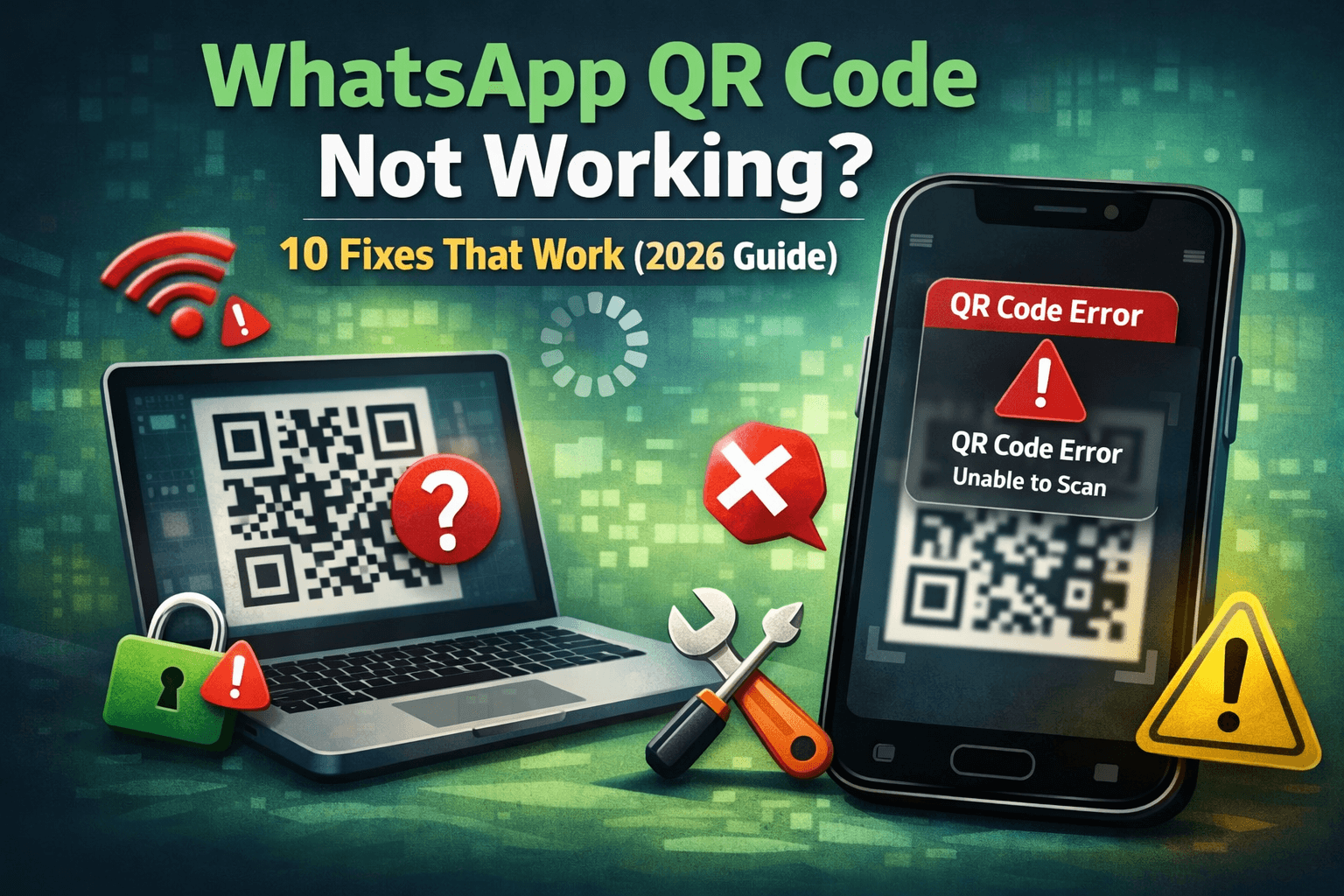
If your WhatsApp QR code isn’t scanning or keeps failing, you’re not alone. This issue is surprisingly common—especially when trying to log into WhatsApp Web or link devices.
The good news? Most QR code problems are easy to fix once you know what’s causing them.
Let’s walk through the 10 most effective fixes that actually work in 2026.
Why Is Your WhatsApp QR Code Not Working?
Before jumping into solutions, here are the most common reasons:
Poor internet connection
Outdated app version
Camera issues
Screen brightness or glare
QR code expired
Browser/device glitches
Now let’s fix it step by step.
1. Check Your Internet Connection
Both your phone and the device displaying the QR code need stable internet.
Fix:
Switch between Wi-Fi and mobile data
Restart your router
Turn airplane mode ON/OFF
2. Refresh the QR Code
WhatsApp QR codes expire quickly for security reasons.
Fix:
Reload the WhatsApp Web page
Tap “Refresh QR Code” if available
3. Clean Your Camera Lens
A smudged or dusty camera can fail to scan properly.
Fix:
Wipe your lens with a soft cloth
Avoid scanning in low light
4. Adjust Brightness & Avoid Glare
Too much glare or low brightness can distort the QR code.
Fix:
Increase screen brightness
Tilt screen to reduce reflections
5. Update WhatsApp
Outdated versions often cause compatibility issues.
Fix:
Go to Play Store or App Store
Update WhatsApp to the latest version
If you’re trying to access WhatsApp Web but keep running into QR issues, you can temporarily stay productive using tools like Chati.ai, which lets you manage conversations and tasks without relying on QR-based login.
6. Use the Correct Scanner
Make sure you're using the built-in WhatsApp scanner, not your phone camera app.
How:
Open WhatsApp
Tap Linked Devices
Select Link a Device
7. Try a Different Browser or Device
Sometimes the issue isn’t your phone—it’s the browser.
Fix:
Switch to Chrome, Edge, or Safari
Try opening WhatsApp Web on another device
8. Clear Browser Cache
Corrupted cache can prevent QR codes from loading properly.
Fix:
Go to browser settings
Clear cache and cookies
Reload the page
9. Restart Your Devices
Simple—but surprisingly effective.
Fix:
Restart your phone
Restart your computer
10. Log Out of All Linked Devices
Too many active sessions can cause issues.
Fix:
Open WhatsApp
Go to Linked Devices
Log out from all devices
Try linking again
Still Not Working?
If none of the above fixes help:
Reinstall WhatsApp
Check for system updates
Ensure your camera permissions are enabled
Pro Tip (2026 Update)
WhatsApp now supports multi-device login without keeping your phone online, but syncing issues can still happen occasionally. Keeping both devices updated is key.
Final Thoughts
Most WhatsApp QR code issues aren’t serious—they’re usually caused by small glitches or outdated settings.
Start with simple fixes like refreshing the QR code or checking your internet, and you’ll likely be back online in minutes.